Manage zones with the Salto Space API
The Space API, part of Salto IDM Connect, is a REST API that communicates with your Salto Space installation over the SHIP protocol. This guide explains how to manage the full lifecycle of a zone through the API:
- Create a zone.
- Get one zone or list all zones.
- Update a zone.
- Delete a zone.
You can use any HTTP client, such as Postman, or your own application. Each step shows the API request and the result in Salto Space.
Before you start, follow the guide to connect Salto Space to the Space API. That guide explains how Salto connects the Space API to your Salto Space installation and issues the API credentials you need. Then request an access token for the requests shown here.
A zone groups access points together so that you can grant access to all of them at once.
You reference zones when you assign access rights to users and access levels.
Every zone is identified by an extZoneId value, which you provide when you create the zone and use to get, update, or delete it later.
The API uses the same response envelope as the other Space API endpoints.
Every call returns HTTP 200, and the Success field in the response tells you whether the operation succeeded.
Always check the Success field rather than relying on the HTTP status code.
Step 1: Create a zone
Use the
POST /api/v1/zonesendpoint to create a zone. The following payload shows the minimal fields:json{ "extZoneId": "UNIQUE_ZONE_ID", "name": "ZONE_NAME", "description": "ZONE_DESCRIPTION", "isFreeAssignment": 0, "isLow": 0, "freeAssignmentGroup": 1, "doors": [] }extZoneIdis the unique identifier of the zone in Salto Space. You can provide any string, and you use this value to get, update, or delete the zone later.nameanddescriptionset the text shown in Salto Space.freeAssignmentGroupmust be1or greater. If you send an invalid value, the API returnsSuccess: falsewith a validation message.doorsis the list of access points in the zone. Each item is an object with anextDoorIdvalue. Leave the list empty to create a zone with no access points.
On success, the response returns the
extZoneIdof the new zone as theDatavalue:json{ "Data": "UNIQUE_ZONE_ID", "Success": true, "Message": "OK" }After a successful response, confirm that the zone was created in the Zones list in Salto Space.
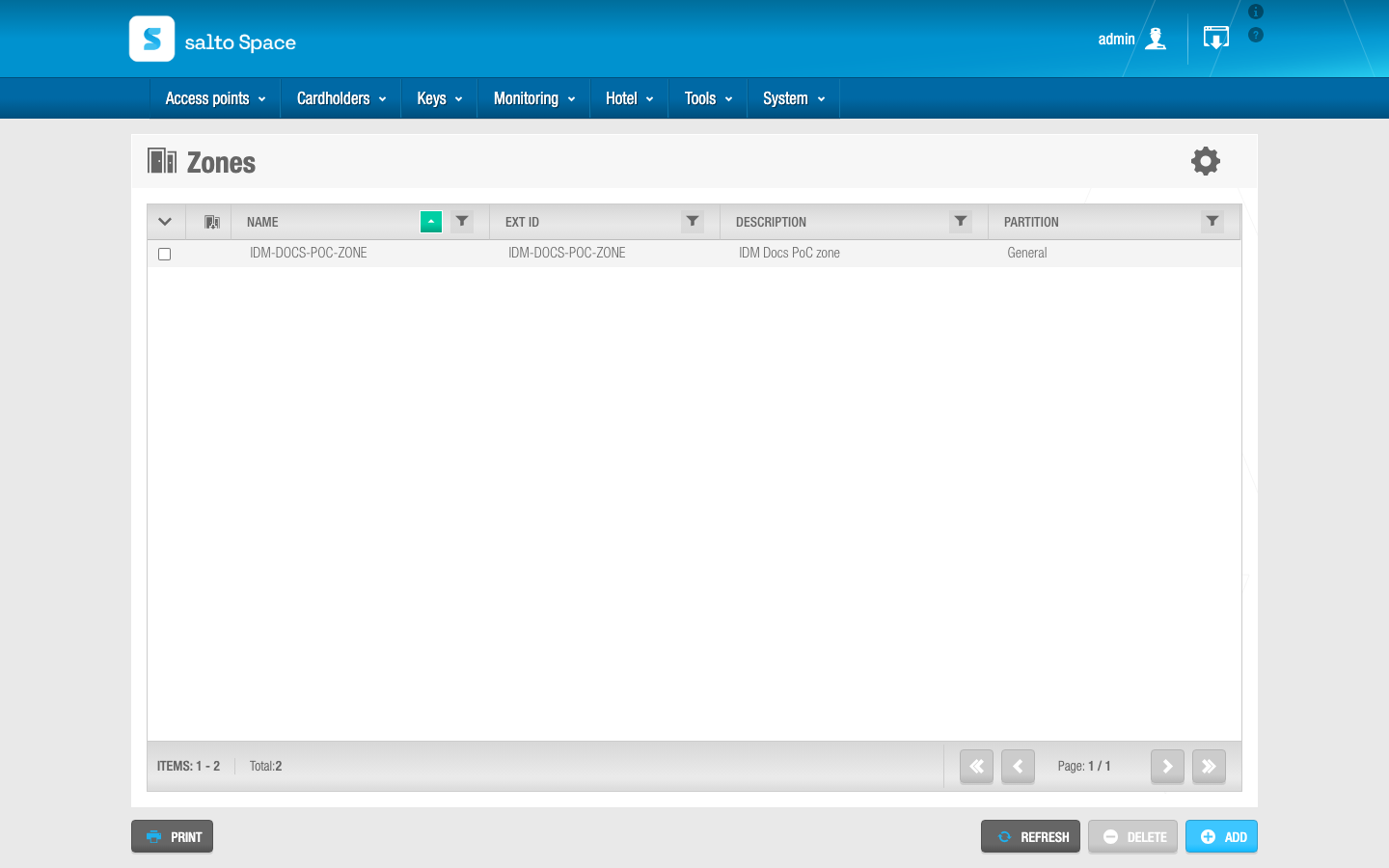
This example uses only the minimal fields. See the Space API reference for the full list of fields you can set on a zone.
Step 2: Get a zone
To get zones:
- To get a single zone, use the
GET /api/v1/zones/IDendpoint, whereIDis theextZoneIdof the zone. - To list all zones, use the
GET /api/v1/zonesendpoint. - To page and filter the results, use the
GET /api/v1/zones/filteredendpoint.
The GET /api/v1/zones/ID endpoint returns the full zone in the Data field:
{
  "Data": {
    "ExtZoneId": "UNIQUE_ZONE_ID",
    "Name": "ZONE_NAME",
    "Description": "ZONE_DESCRIPTION",
    "IsFreeAssignment": 0,
    "IsLow": 0,
    "FreeAssignmentGroup": 1,
    "Doors": []
  },
  "Success": true,
  "Message": "OK"
}
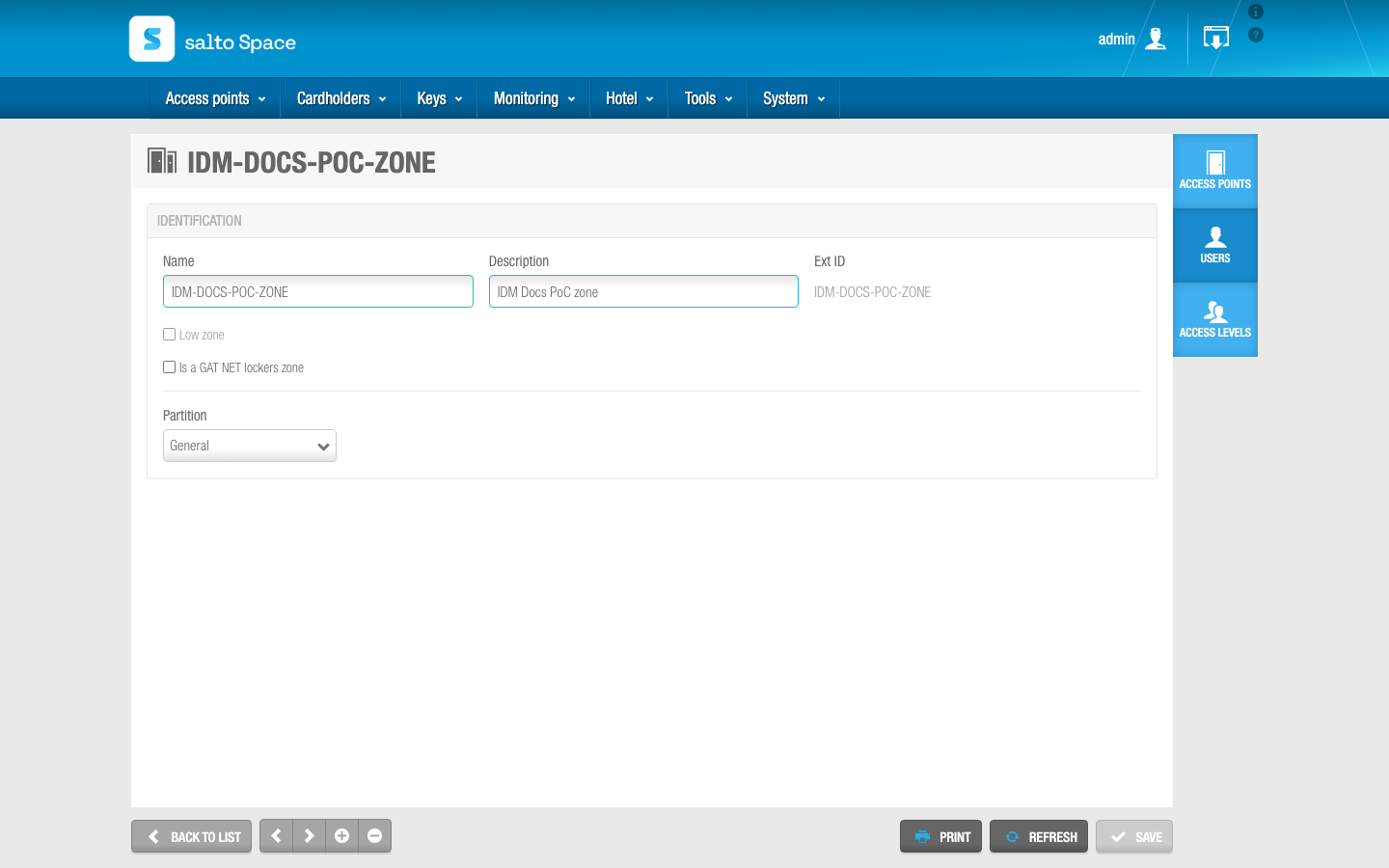
In Salto Space, double-click a zone in the Zones list to open its detail page. The Identification panel shows the Name, Description, and read-only Ext ID, along with the Low zone and Is a GAT NET lockers zone options and the Partition the zone belongs to.
Step 3: Update a zone
Use the
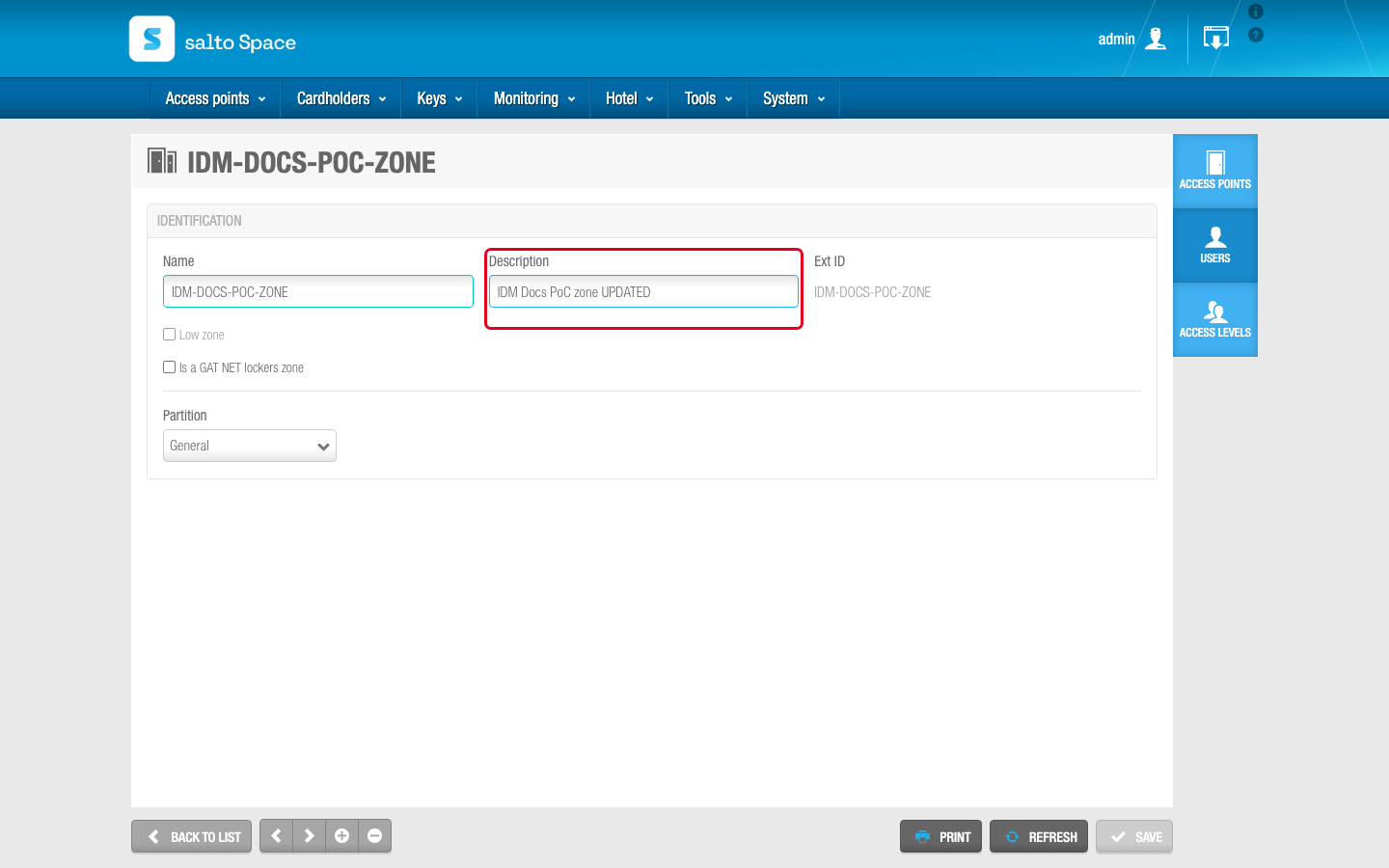
PUT /api/v1/zones/IDendpoint, whereIDis theextZoneIdof the zone. Send the full zone in the request body, including the fields you do not change, because the update replaces the existing zone rather than patching individual fields. The following payload updates the description:json{ "extZoneId": "UNIQUE_ZONE_ID", "name": "ZONE_NAME", "description": "NEW_ZONE_DESCRIPTION", "isFreeAssignment": 0, "isLow": 0, "freeAssignmentGroup": 1, "doors": [] }After a successful response, confirm the change on the zone's page in Salto Space.
Step 4: Delete a zone
Use the
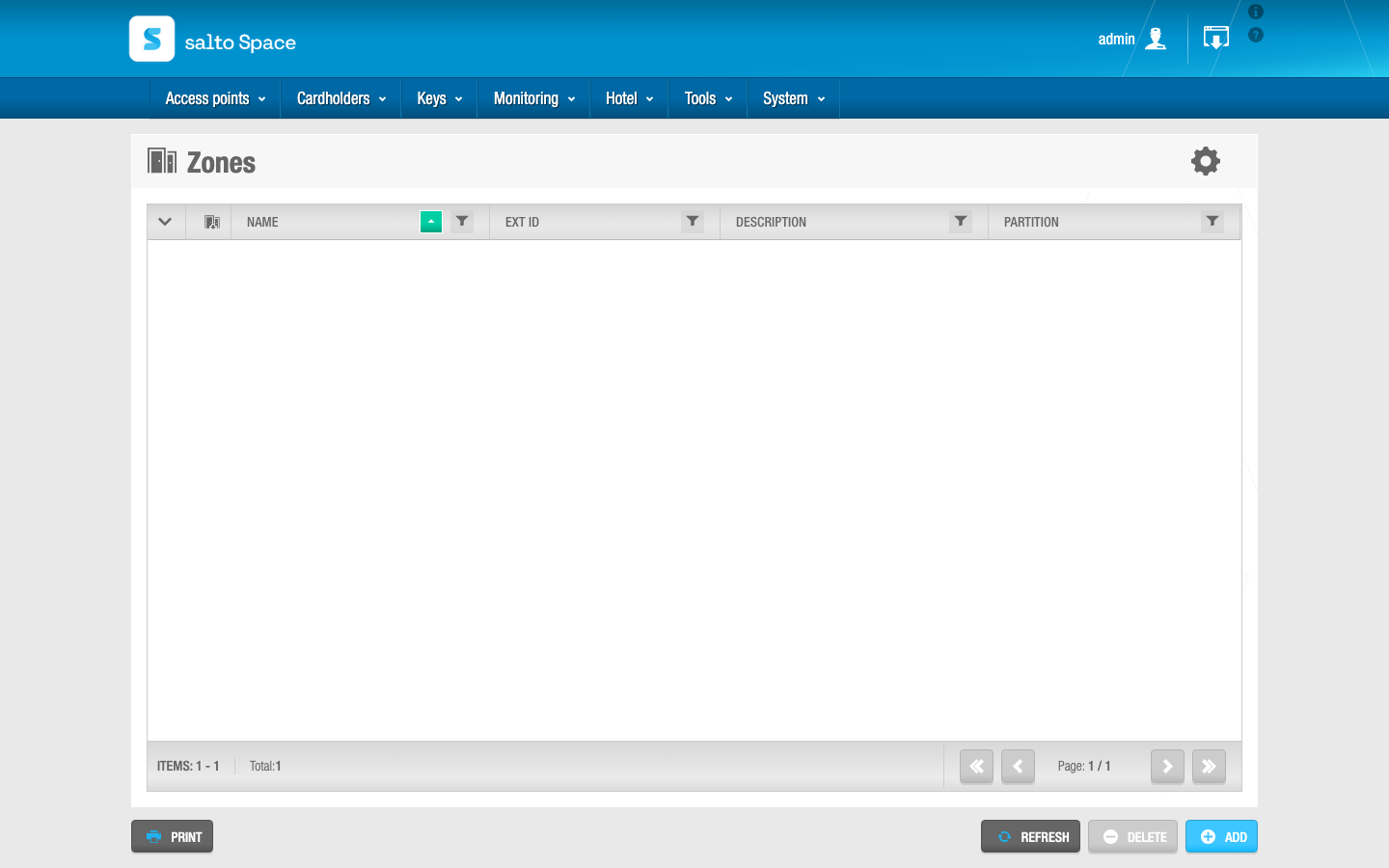
DELETE /api/v1/zones/IDendpoint, whereIDis theextZoneIdof the zone.After the zone is deleted, it no longer appears in the Zones list in Salto Space.
A later
GET /api/v1/zones/IDrequest for the deleted zone returnsSuccess: false. Check theSuccessfield to confirm that the zone no longer exists.
API definition and documentation
See the Space API reference for a full description of the endpoints and entities available through the API.
The Space API uses a limited set of the functionality available in the full SHIP protocol.
Contact support-id@saltosystems.com if you need functionality in the API that is not yet available.
 Back
Manage access levels
 Manage doors