Manage doors with the Salto Space API
The Space API, part of Salto IDM Connect, is a REST API that communicates with your Salto Space installation over the SHIP protocol. This guide explains how to manage the full lifecycle of a door through the API:
- Create a door.
- Get one door or list all doors.
- Update a door.
- Delete a door.
- Remotely open an online door.
You can use any HTTP client, such as Postman, or your own application. Each step shows the API request and the result in Salto Space.
Before you start, follow the guide to connect Salto Space to the Space API. That guide explains how Salto connects the Space API to your Salto Space installation and issues the API credentials you need. Then request an access token for the requests shown here.
Step 1: Create a door
Use the
POST /api/v1/doorsendpoint to create a door. The following payload shows the minimal fields:json{ "extDoorId": "UNIQUE_DOOR_ID", "name": "DOOR_NAME", "description": "DOOR_DESCRIPTION" }extDoorIdis the unique identifier of the door in Salto Space. You can provide any string, and you use this value to get, update, or delete the door later.nameanddescriptionset the values shown in Salto Space.
After a successful response, confirm that the door was created in Salto Space. The new door appears in the Doors list, which you open from the Access points menu.
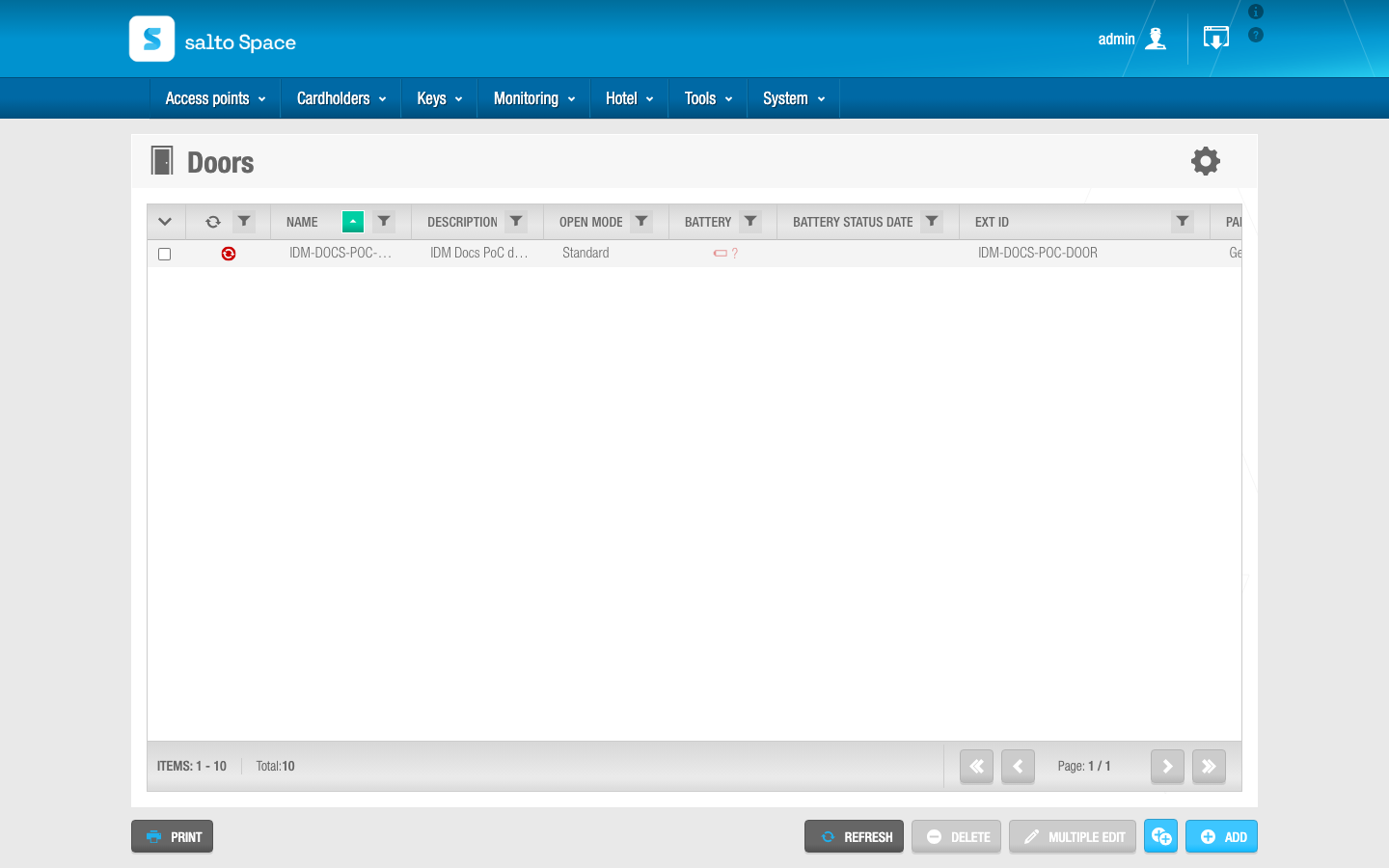
This example uses only the minimal fields. You can also set scalar settings such as the open time on creation, but assign door functions, locations, and zones with a later update or through the related endpoints instead of on the create request. See the Space API reference for the full list of fields you can set on a door.
Step 2: Get a door
To get doors:
- To get a single door, use the
GET /api/v1/doors/IDendpoint, whereIDis theextDoorIdof the door. The response returns the full door, including the fields that Salto Space sets by default, such as the open time, opening mode, and battery status. - To list all doors, use the
GET /api/v1/doorsendpoint. - To page and filter the results, use the
GET /api/v1/doors/filteredendpoint with themaxCountandstartingFromExtDoorIdquery parameters.
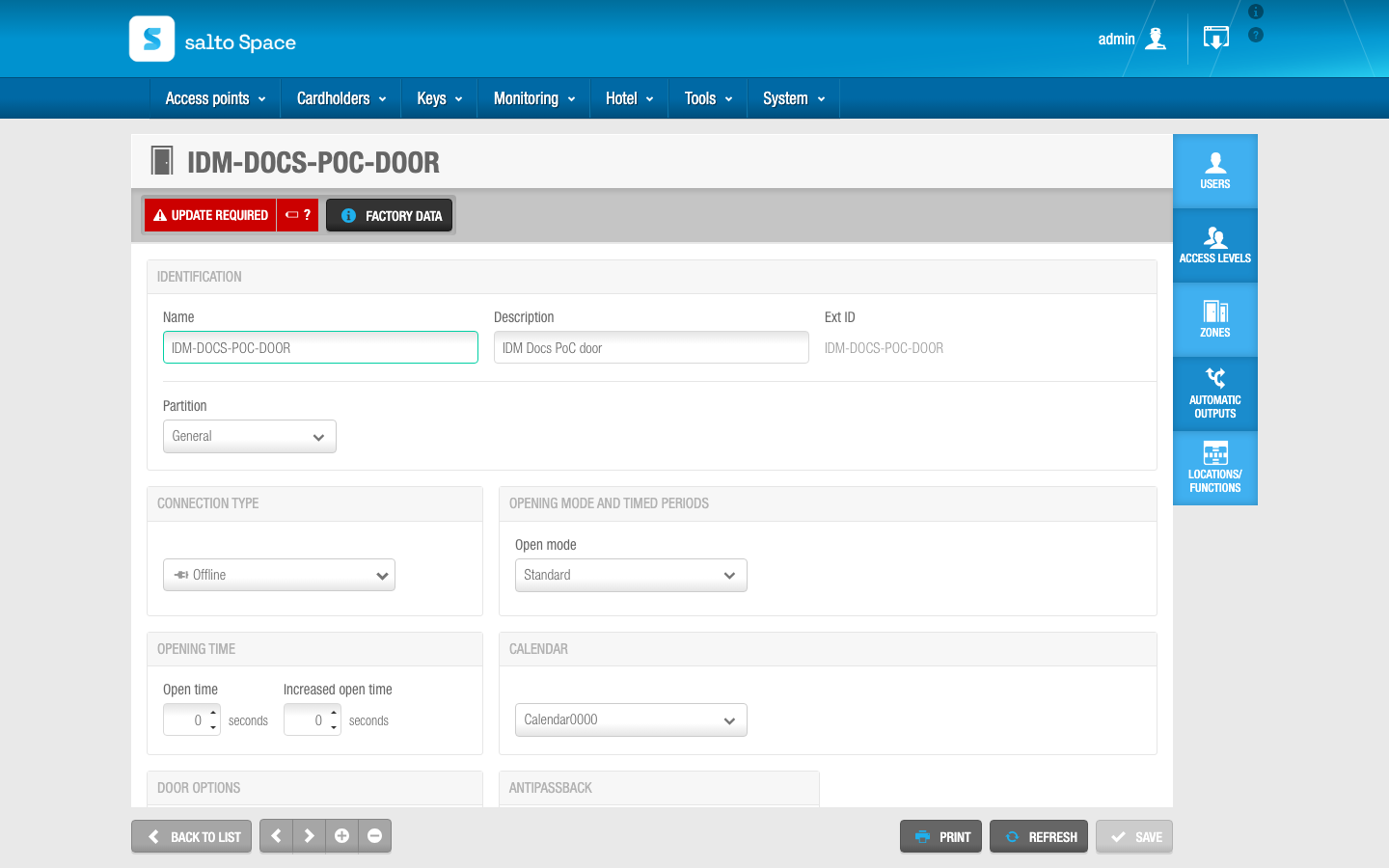
You can double-click a door in the Doors list to open its detail page, where the identification, connection type, opening mode, opening time, and calendar are shown.
Step 3: Update a door
Use the
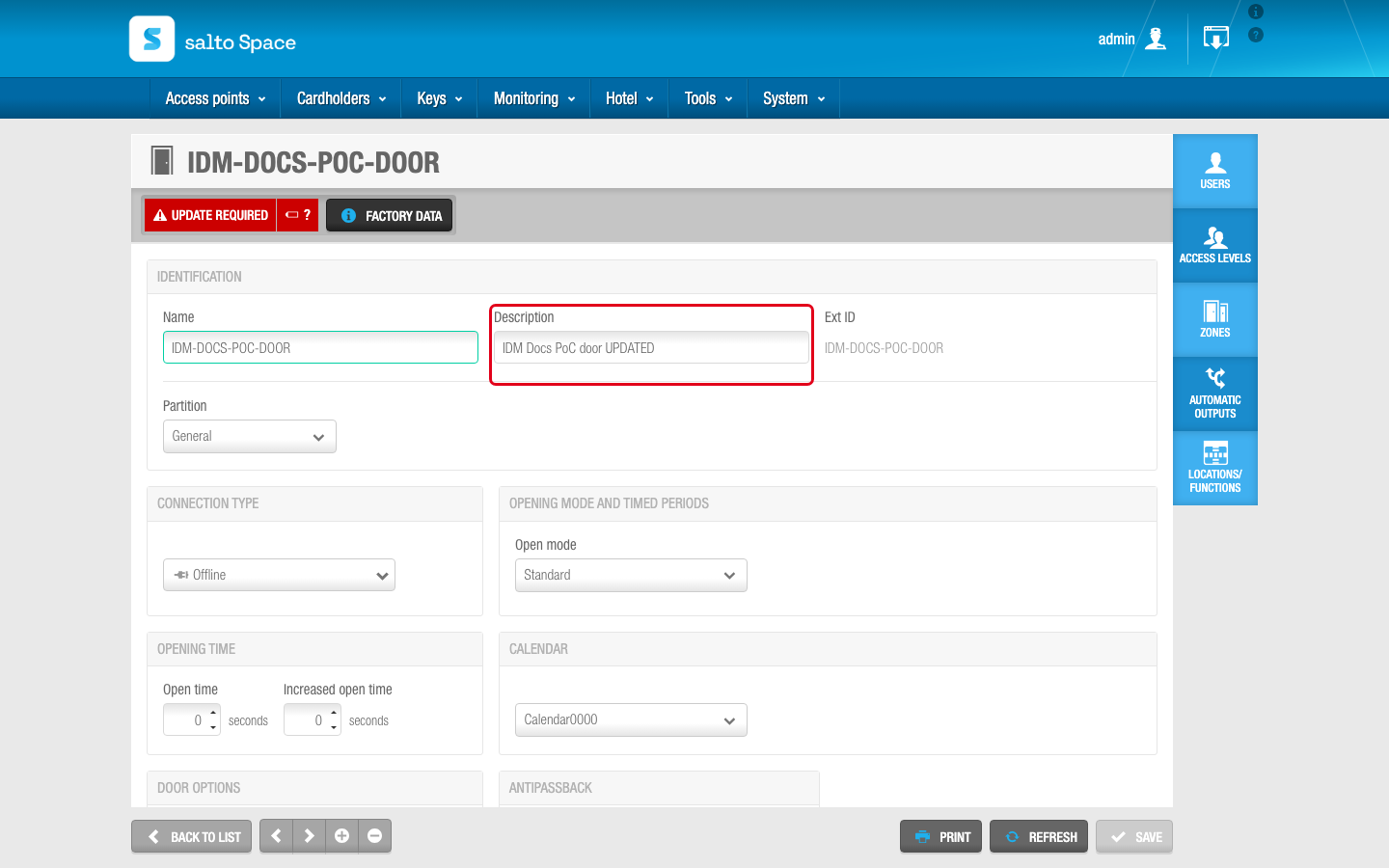
PUT /api/v1/doors/IDendpoint, whereIDis theextDoorIdof the door. Send the complete door: get it with theGET /api/v1/doors/IDendpoint, change the values you want, and send the whole object back. The update doesn't patch individual fields. Numeric settings that you leave out, such asopenTimeandopeningMode, reset to0, while text fields that you leave out keep their values. The following payload updates the description and sends the other settings back unchanged:json{ "extDoorId": "UNIQUE_DOOR_ID", "name": "DOOR_NAME", "description": "NEW_DOOR_DESCRIPTION", "openingMode": 0, "openTime": 6, "openTimeAda": 20, "antiPassBackEnabled": 0, "outwardAntiPassBack": 0, "auditOnKeys": 0, "keypadCode": "0000", "timedPeriodsTableId": "1", "automaticChangesTableId": "1", "gpf1": "", "gpf2": "", "doorZones": [], "doorFunctions": [], "doorLocations": [] }After a successful response, confirm the change on the door's detail page in Salto Space.
Step 4: Delete a door
Use the
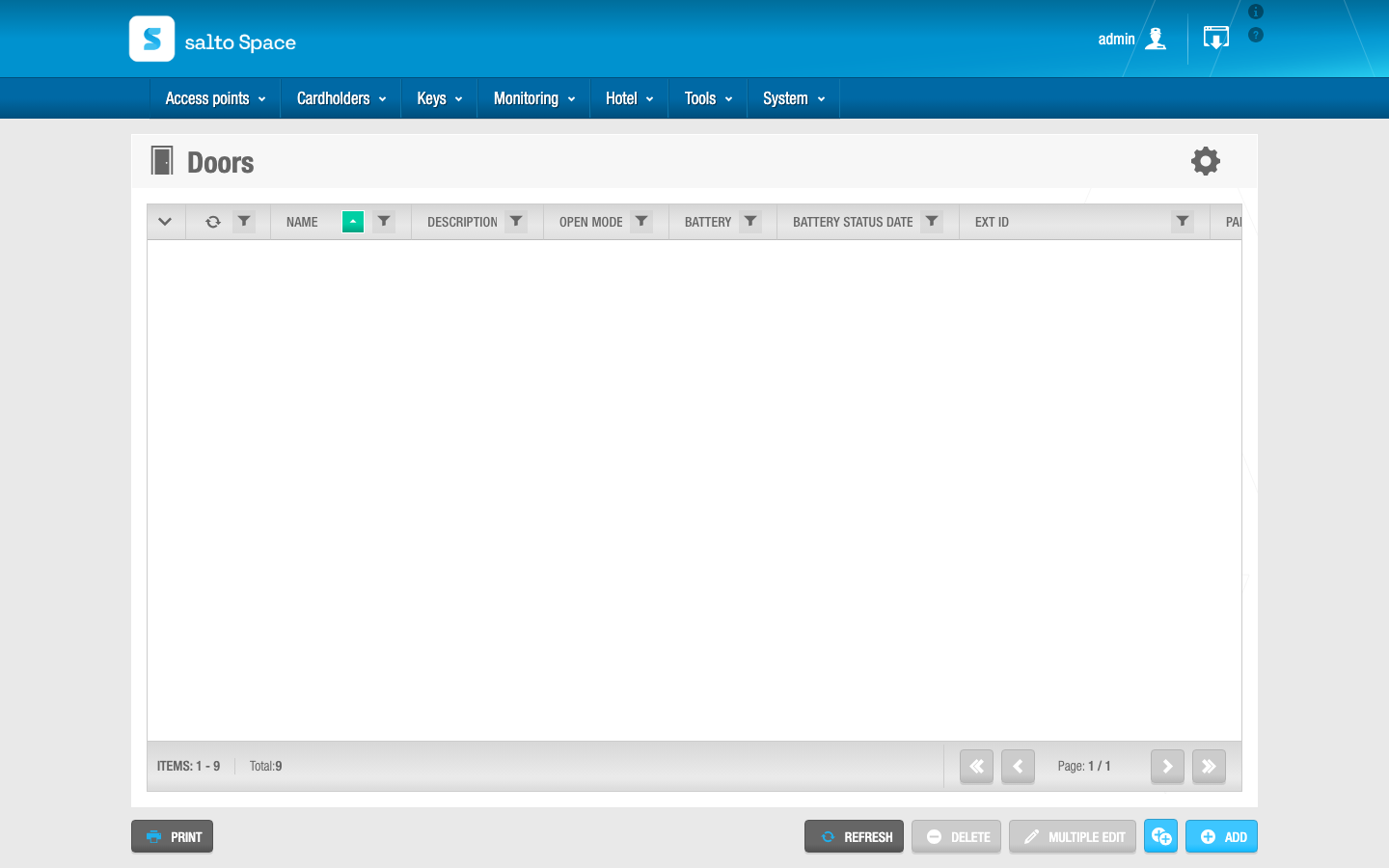
DELETE /api/v1/doors/IDendpoint, whereIDis theextDoorIdof the door.After the door is deleted, it is removed from Salto Space and no longer appears in the Doors list.
Step 5: Remotely open an online door
For an online door, you can send a remote open command using the GET /api/v1/doors/OnlineDoorOpen/ID endpoint, where ID is the extDoorId of the door.
On a real online door, this command physically unlocks the door, so use it only against a door you intend to open.
In the response, Success refers to the request, not to the door.
The Data array has an entry per door with DoorID, ErrorCode, and ErrorMessage, and the door opened only when its entry reports no error.
For example, a door that the system can't reach returns Success: true with ErrorCode: 406 and ErrorMessage: "Peripheral not initialized".
A door must be online for the remote open command to take effect. For an offline door, or a door that cannot currently be reached, the response reports that the door was not opened.
Handling responses
Every endpoint returns HTTP 200, including when the operation does not succeed.
The create, get, update, and delete endpoints return a Success flag and a Message, so check the Success flag rather than the HTTP status code to determine the outcome.
For example, if you request a door ID that does not exist, the API can return HTTP 200 with Success set to false.
When you get a door, also check that the ExtDoorId in the response matches the ID you requested, because a request for an ID that does not exist can return a different door.
The remote open endpoint is the exception: its Success flag is true when the API processed the request, and the result for each door is in Data, as described in step 5.
API definition and documentation
See the Space API reference for a full description of the endpoints and entities available through the API.
The Space API uses a limited set of the functionality available in the full SHIP protocol.
Contact support-id@saltosystems.com if you need functionality in the API that is not yet available.
 Back
Manage zones
 Manage physical keys