Manage JustIN Mobile keys with the Salto Space API
The Space API, part of Salto IDM Connect, is a REST API that communicates with your Salto Space installation over the SHIP protocol. This guide explains how to manage users and their JustIN Mobile keys through the API:
- Create a user with the values required for mobile key assignment.
- Get and assign user access levels to the user.
- Assign a JustIN Mobile or JustIN Mobile SDK key to the user.
- Cancel the mobile key of the user.
- Delete the user.
- Assign and cancel a mobile key that is not tied to a user, directly to a phone number.
- Send the audit trail of JustIN Mobile SDK openings to Salto Space.
The examples use Postman, but you can use any HTTP client or your own application.
Before you start, follow the guide to connect Salto Space to the Space API. That guide explains how Salto connects the Space API to your Salto Space installation and issues the API credentials you need. Then request an access token for the requests shown here.
Step 1: Create a user with the values required for mobile assignment
Use the
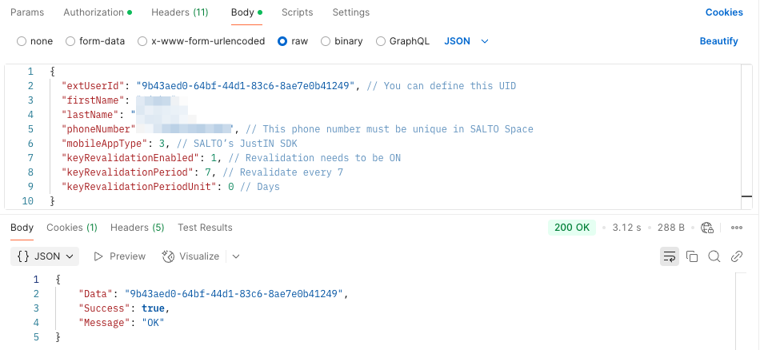
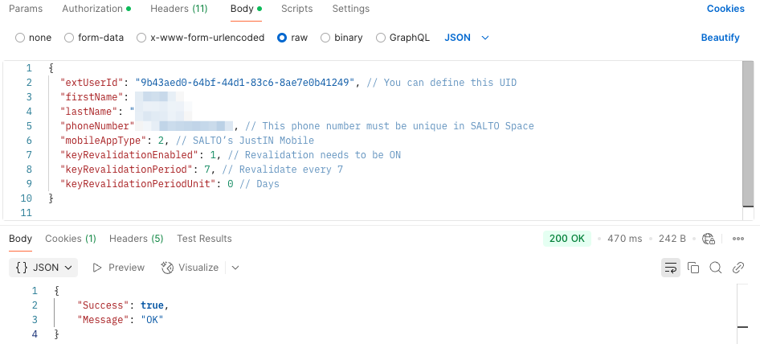
POST /api/v1/usersendpoint to create a user, or thePUT /api/v1/users/IDendpoint to update an existing one. The following payload shows the minimal requirements for mobile key assignment:json{ "extUserId": "UNIQUE_USER_ID", "firstName": "FIRST_NAME", "lastName": "LAST_NAME", "phoneNumber": "PHONE_NUMBER", "mobileAppType": 3, "keyRevalidationEnabled": 1, "keyRevalidationPeriod": 7, "keyRevalidationPeriodUnit": 0 }extUserIdis the unique identifier of the user in Salto Space. You can provide any string.phoneNumberis required and must not be assigned to any other user. Use the full phone number including the country code, for example+15555550100.mobileAppTypesets the key type: use2for JustIN Mobile keys or3for JustIN Mobile SDK keys.keyRevalidationEnabledmust be1. SetkeyRevalidationPeriodto the minimum period your configuration requires, for example 7 days (keyRevalidationPeriodUnitof0).
The following example creates a user that uses a JustIN Mobile SDK key:
The following example updates a user to use a JustIN Mobile key:
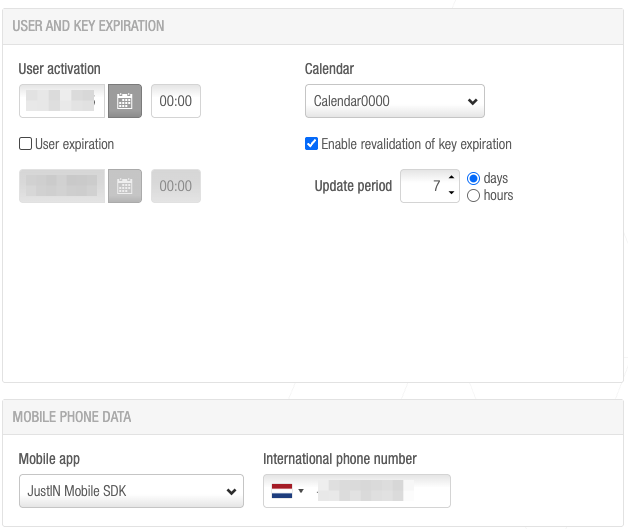
After a successful call, confirm that the user was created in Salto Space.
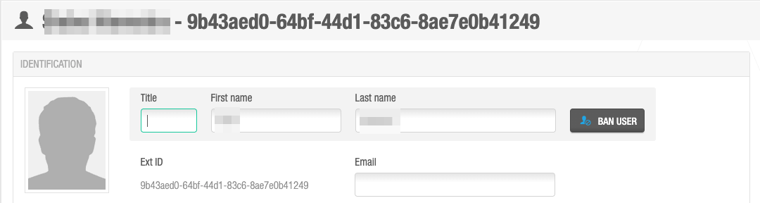
Check that the key revalidation period, mobile app type, and phone number are correct.
This example provides only the minimal fields required to create a user and assign a mobile key. See the Space API reference for the other fields you can set on the users you manage.
Step 2: Get and assign user access levels
Get the list of available user access levels using the
GET /api/v1/accesslevelsendpoint. To get zones, use theGET /api/v1/zonesendpoint.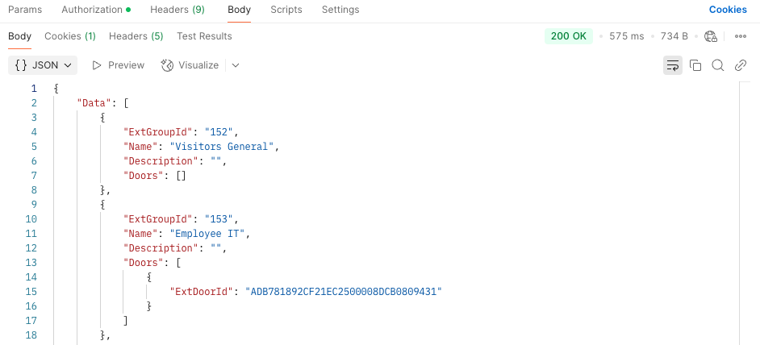
Find the user access level you want to assign and copy its
extGroupId. For zones, copy theextZoneId.Use the
POSTorPUTendpoint for users and provide the list of access levels in thegroupMembershipproperty. For zones, use thezoneAccessRightsproperty.json{ "groupMembership": [ { "extGroupId": "ACCESS_LEVEL_ID" } ] }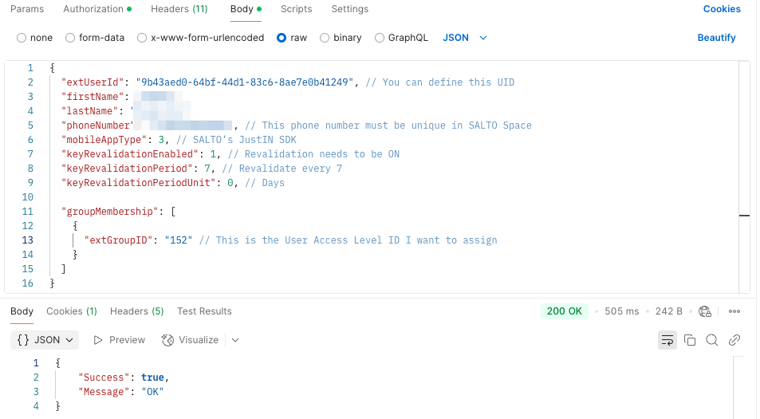
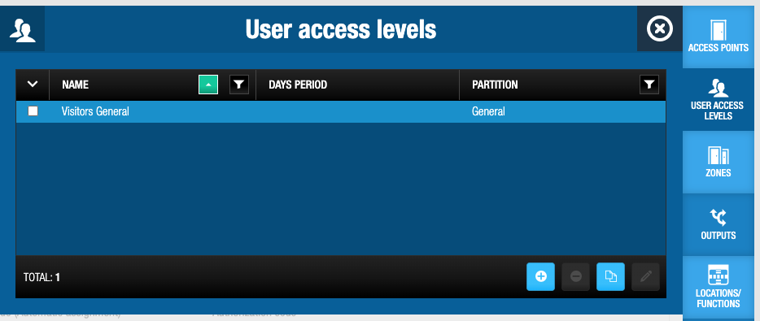
After a successful response, confirm that the user access levels are assigned to the user in Salto Space.
Step 3: Assign a JustIN Mobile or JustIN Mobile SDK key
After the user exists in Salto Space with access levels or zones assigned, assign a JustIN Mobile key. Choose the mobile app type for your use case:
Use JustIN Mobile for users who open locks with Salto's JustIN Mobile app. Use the
PUT /api/v1/MobileKeys/AssignUserMobileKeyendpoint to assign the key.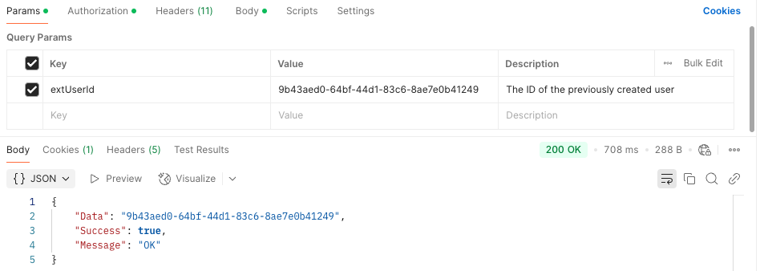
Use JustIN Mobile SDK for users who open locks with your own app. Use the
PUT /api/v1/MobileKeys/AssignUserMobileKeySdkendpoint to obtain theBinaryDatastring, then integrate it into your app using the JustIN Mobile SDK.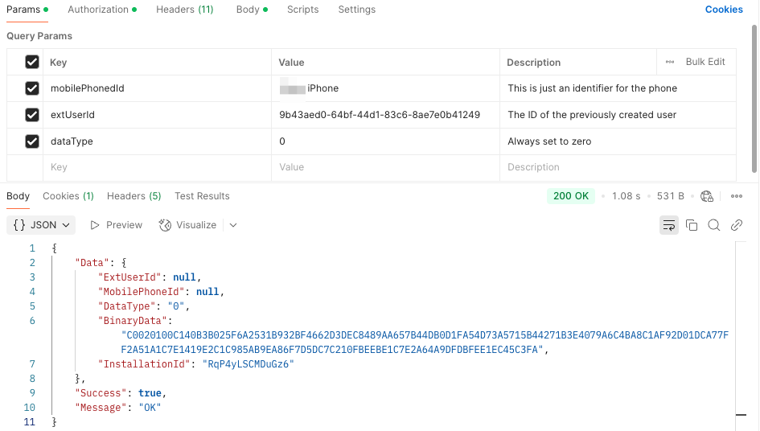
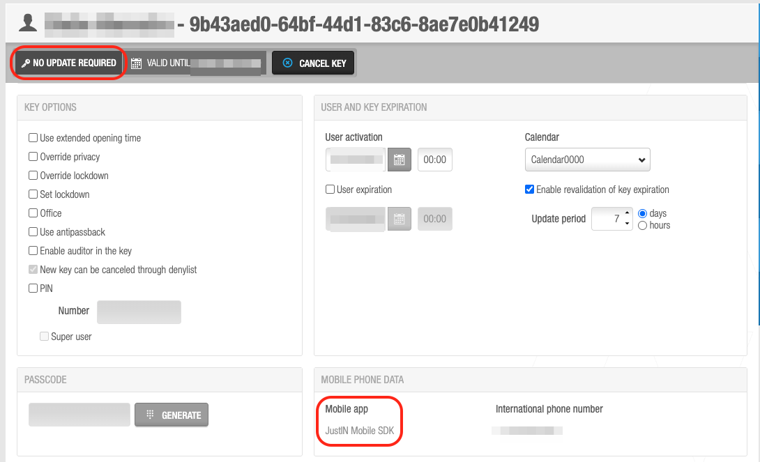
Confirm that the key is assigned by checking the key status on the user page in Salto Space.
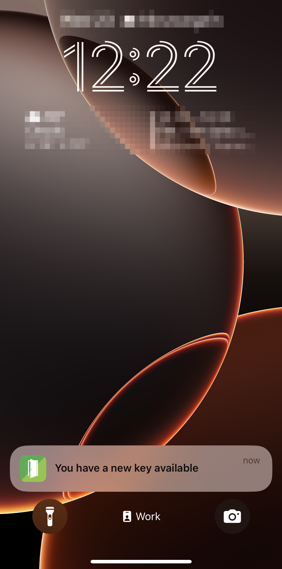
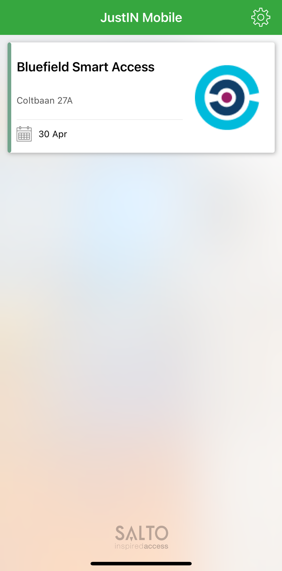
If you used JustIN Mobile, the user receives a notification that a new key is available and can use it by opening the JustIN Mobile app.
Step 4: Cancel the mobile key of the user
To cancel a JustIN Mobile key, whether regular or SDK, use the
PUT /api/v1/MobileKeys/CancelUserKeyendpoint.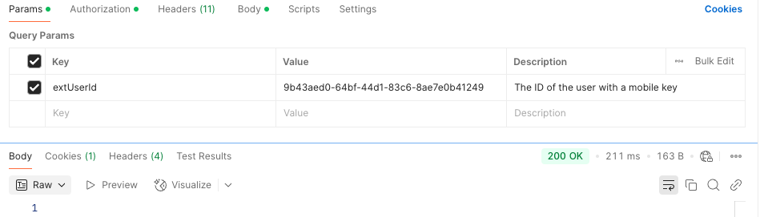
- If you use the JustIN Mobile app, the key is removed from the app automatically.
- If you use the SDK, the key stops working, but you must handle the removal process in your app as well.
The
POST /api/v1/keys/CancelKeyendpoint performs the same operation. Both cancel the user's key whether it is a mobile or a physical key.In Salto Space, the key status banner at the top of the user page is removed, and the Mobile app field becomes editable again.
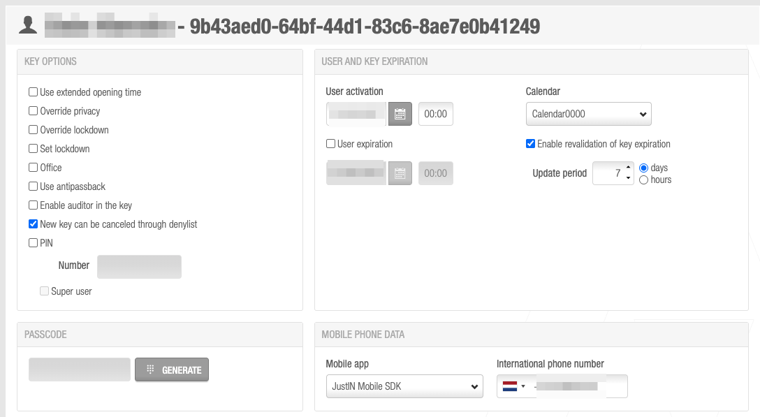
If you use JustIN Mobile, the key is removed from the app automatically.
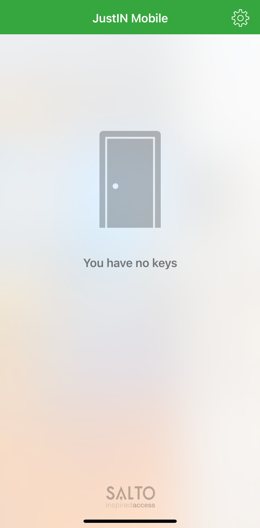
Step 5: Delete the user
To fully delete the user instead of only canceling the mobile key, use the
DELETE /api/v1/users/IDendpoint.
After the user is deleted, the record is removed from Salto Space and all access is revoked, including both mobile and physical keys.
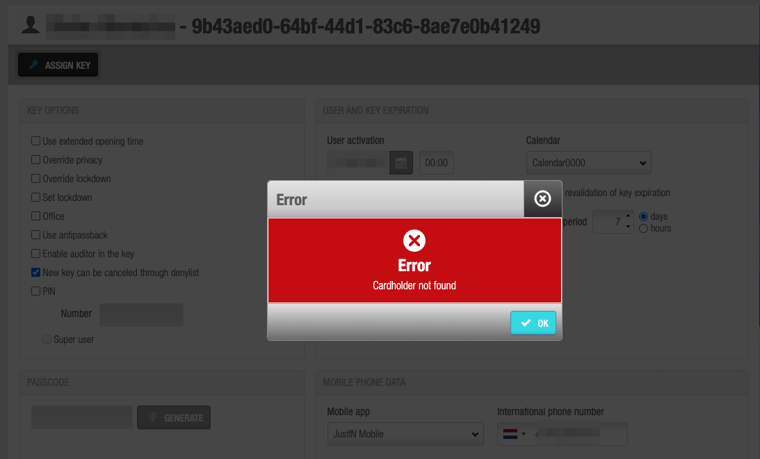
Cancel the mobile key first, and then delete the user. This is recommended but not mandatory. It prevents undesired scenarios when you use the JustIN Mobile SDK.
Step 6: Assign a non-user mobile key
You can also assign a JustIN Mobile key that is not tied to a user, directly to a phone number. Use this when you want to issue a key to a phone number without creating and maintaining a cardholder in Salto Space.
Use the
POST /api/v1/mobilekeys/assignNonUserMobileKeyendpoint. Provide the following query parameters:phoneNumberis the phone number that receives the key. Use the full phone number including the country code, for example+15555550100.keyIdidentifies the key.returnKeyIdcontrols whether the response returns the resulting key ID.
Provide the key configuration in the request body. The following payload shows the structure:
json{ "generalPeriod": { "startDate": { "value": "2026-06-12T00:00:00Z" }, "endDate": { "value": "2026-12-12T00:00:00Z" } }, "office": "OFFICE", "auditOpenings": "AUDIT_OPENINGS", "accessRights": [ { "accessPoints": { "accessType": 0, "accessID": "ACCESS_ID" }, "timezones": [ { "startTime": "08:00", "startTimeString": "08:00", "endTime": "18:00", "endTimeString": "18:00" } ] } ] }generalPeriodsets the validity window of the key, with astartDateandendDate.officeandauditOpeningsset the office and audit openings for the key.accessRightsdefines what the key opens and when. Each entry pairs anaccessPointsvalue, which sets theaccessTypeandaccessID, with thetimezonesthat apply.
After a successful call, the response returns a
Successflag, aMessage, and aDatavalue. When you setreturnKeyId, theDatavalue carries the resulting key ID, which you use later to cancel the key.
Step 7: Cancel a non-user mobile key
To cancel a non-user mobile key, use the
PUT /api/v1/mobilekeys/cancelMobileKeyendpoint. Provide thekeyIdquery parameter to identify the key to cancel.After a successful call, the key is canceled and stops working.
Non-user mobile keys are assigned to a phone number rather than to a cardholder in Salto Space. They are identified by their key ID and are managed independently of users, so they do not appear in the user steps shown earlier in this guide.
Step 8: Send the JustIN Mobile SDK audit trail to Salto Space
When a device opens a lock over Bluetooth with a JustIN Mobile SDK key, the SDK captures ciphered audit trail data. Send this data to the API so Salto Space can decipher it and store the resulting event in its database. This lets your app audit these openings in real time.
Use the
POST /api/v1/MobileKeys/DecipherJustInMobileSdkAuditTrailendpoint with the following payload:json{ "auditTrailData": "CIPHERED_AUDIT_TRAIL_DATA", "showUserIdAs": 1, "showDoorIdAs": 1 }auditTrailDatais required and contains the ciphered audit trail data that the JustIN Mobile SDK returned.showUserIdAssets how the response identifies the user:0for the user name, which is the default, or1for the external user ID.showDoorIdAssets how the response identifies the door:0for the door name, which is the default, or1for the external door ID.
After a successful call, Salto Space stores the event, and the response contains the deciphered event:
- The date and time of the event.
- The operation code and its description, such as an opening or a rejection.
- Whether the event happened at the exit reader.
- The door and the user, identified as you requested.
- The battery status of the lock:
0for normal,1for low, or2for the lowest level.
API definition and documentation
See the Space API reference for a full description of the endpoints and entities available through the API.
The Space API uses a limited set of the functionality available in the full SHIP protocol.
Contact support-id@saltosystems.com if you need functionality in the API that is not yet available.
The endpoints and their entities are fully described in the Salto Host Interface Protocol (SHIP) specifications document.
To integrate the binary data into your own application for using mobile keys, follow the technical documentation and SDK for the JustIN Mobile SDK.
Salto Identity Solutions does not provide these documents, but you can request them from your Salto dealer or partner, or by contacting support@saltosystems.com.
 Back
Authentication
 Manage users